

Prerequisites
Before using OpenHands CLI with ACP, you must first install and configure the CLI:- Install OpenHands CLI by following the CLI Mode installation instructions
- Configure your LLM settings using the
/settingscommand
What is the Agent Client Protocol (ACP)?
The Agent Client Protocol (ACP) is a standardized communication protocol that enables code editors and IDEs to interact with AI agents. ACP defines how clients (like code editors) and agents (like OpenHands) communicate through a JSON-RPC 2.0 interface. For more details about the protocol, see the ACP documentation.ACP Support in OpenHands CLI
OpenHands CLI implements the Agent Client Protocol, allowing you to use OpenHands directly within your code editor. When you configure your editor to useopenhands acp, it will communicate with OpenHands through the standardized ACP interface.
OpenHands CLI currently supports the following ACP features:
✅ Implemented:
- Initialization - version negotiation and capability exchange
- Session Setup - creating new sessions and loading existing ones
- Content - including embedded content and resources
- Prompt Turns - sending prompts and receiving responses with permission support
- Tool Calls - executing tools and returning results
- Agent Plan - sharing agent’s planned actions
- Confirmation Mode - user authorization for tool calls and prompt turns
- Slash Commands - for changing confirmation mode during a session
Confirmation Modes
OpenHands ACP supports three confirmation modes to control how agent actions are approved:Always Ask (Default)
The agent will request user confirmation before executing each tool call or prompt turn. This provides maximum control and safety.Always Approve
The agent will automatically approve all actions without asking for confirmation. Use this mode when you trust the agent to make decisions autonomously.LLM-Based Approval
The agent uses an LLM-based security analyzer to evaluate each action. Only actions predicted to be high-risk will require user confirmation, while low-risk actions are automatically approved.Changing Modes During a Session
You can change the confirmation mode during an active session using slash commands:/confirm always-ask- Switch to always-ask mode/confirm always-approve- Switch to always-approve mode/confirm llm-approve- Switch to LLM-based approval mode/help- Show all available slash commands
The confirmation mode setting persists for the duration of the session but will reset to the default (or command-line specified mode) when you start a new session.
ACP Integration
Zed IDE
Zed is a high-performance code editor with built-in support for the Agent Client Protocol. To configure OpenHands CLI with Zed:- Ensure OpenHands CLI is installed and configured (see Prerequisites)
-
Open your Zed editor, use
Cmd+Shift+P(Mac) orCtrl+Shift+P(Windows/Linux) to open the command palette, and search foragent: open settings
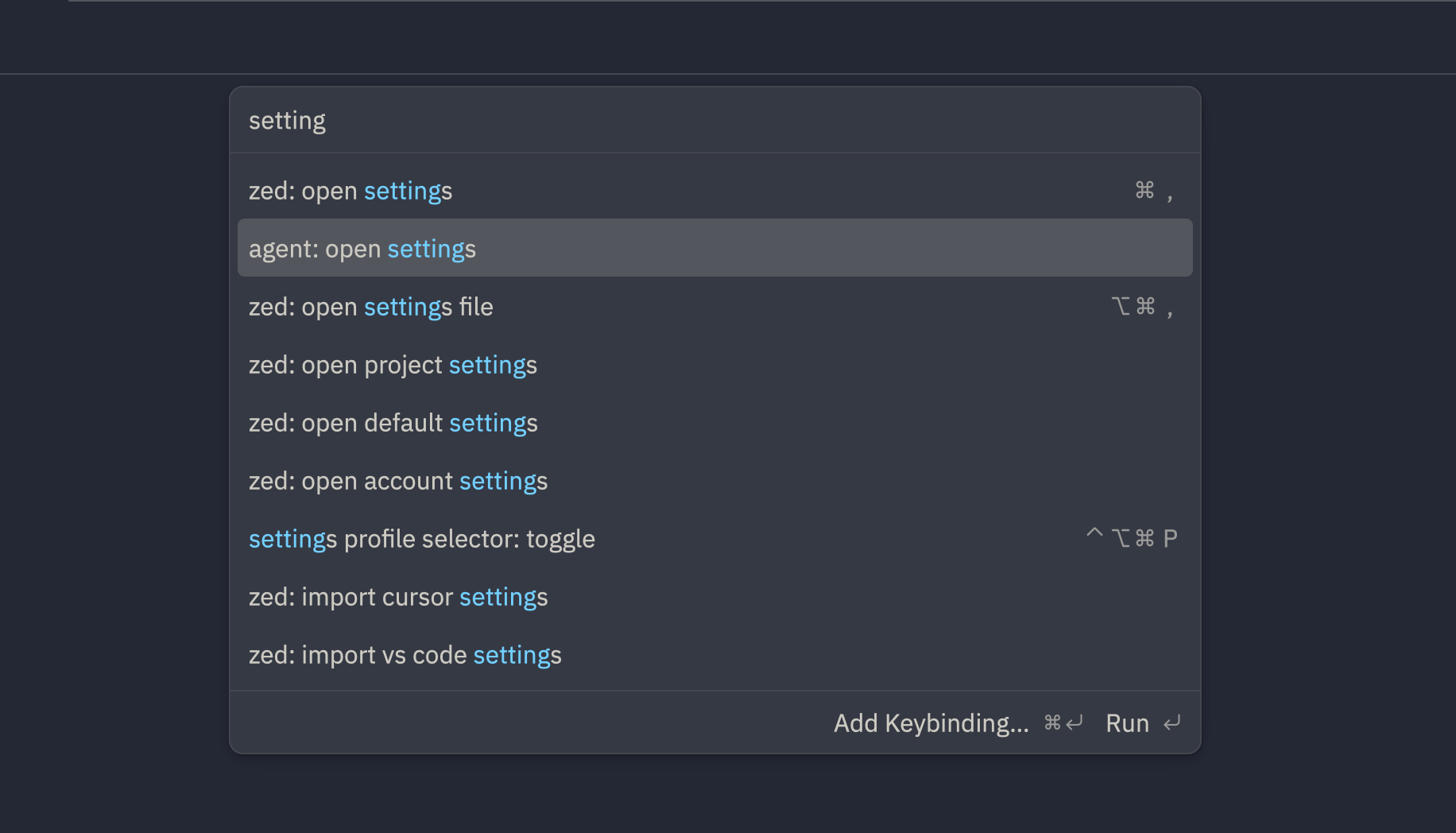
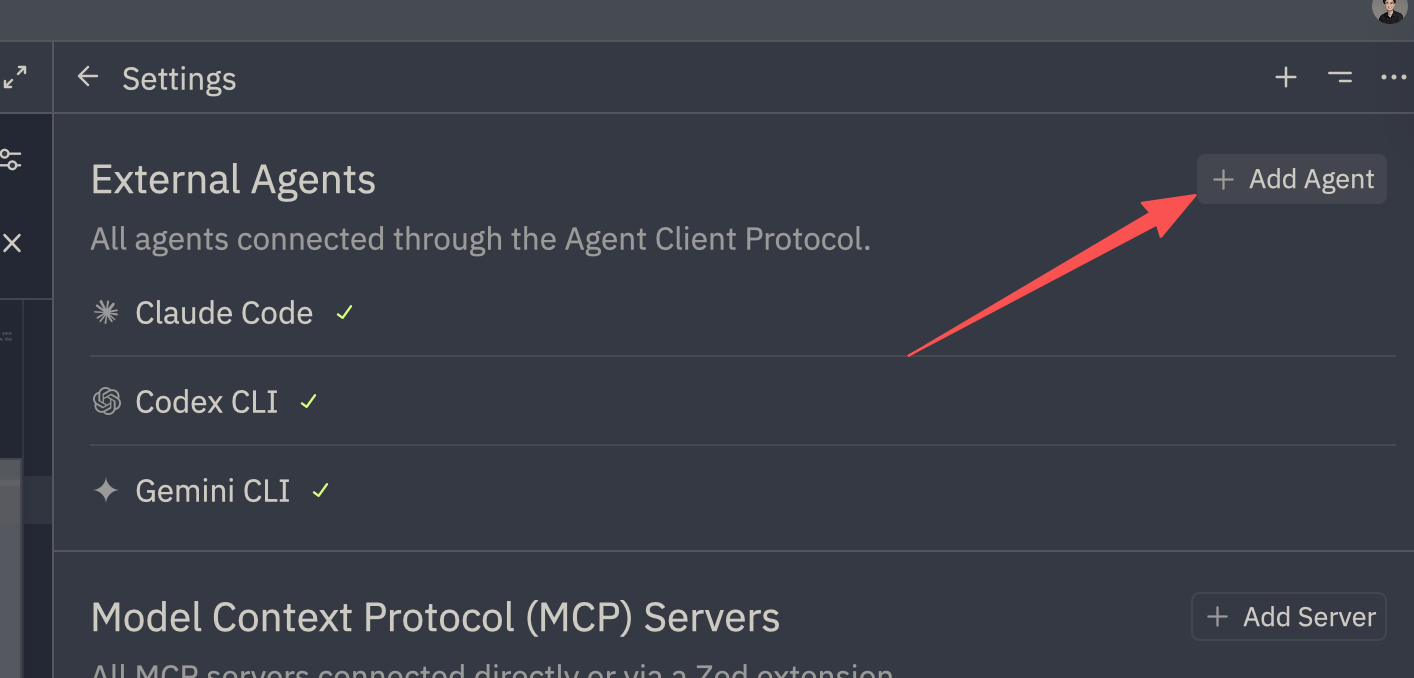
- Then on the right side, click on
+ Add Agentand selectAdd Custom Agent
- Add the following to the
"agent_servers"field:
- Save the file
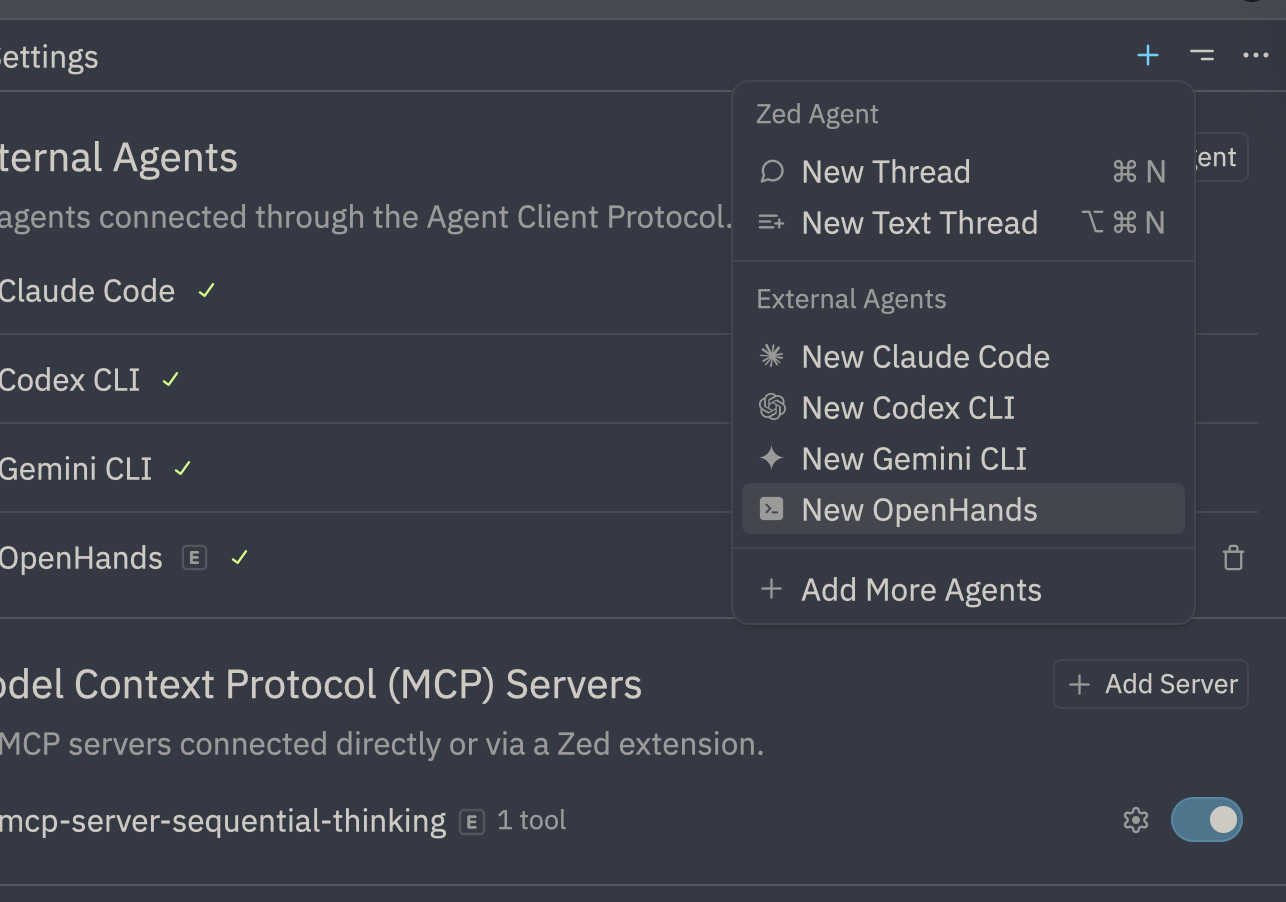
- You can now use OpenHands within Zed!
Troubleshooting
If you encounter issues while using OpenHands in Zed with the ACP plugin, you can access detailed debug logs:- Open the command palette with
Cmd+Shift+P(Mac) orCtrl+Shift+P(Windows/Linux) - Type and select
acp debug logto view detailed debug information - Review the logs for any errors or warnings
- Restart a new conversation to reload connections after making configuration changes
If you encounter persistent issues, verify that OpenHands CLI is properly configured (see Prerequisites) and that all server commands are executable from your system PATH.
See Also
- CLI Mode - Learn about using OpenHands CLI interactively
- ACP Documentation - Full Agent Client Protocol specification
- Zed Documentation - Learn more about using Zed editor